
In case there are any problems using any of our products on WordPress, we always will be pleased to help. But when you contacting our technical support, please describe in detail your issue and provide your error message if it is. It would be better if you send your site link as well.
To see an error message, you need to enable the bugs report. You can use the FTP or file manager of your hosting сpanel for this.
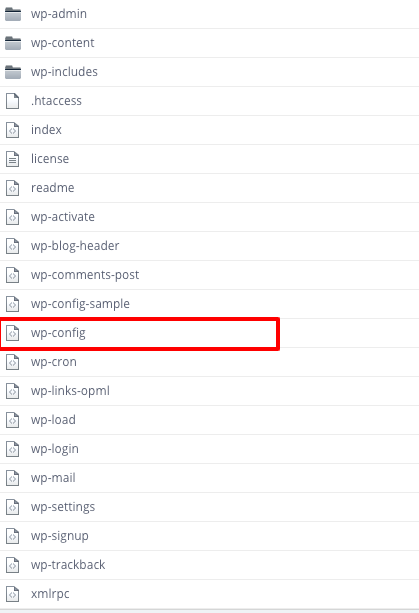
- Go to the root folder of your WordPress site and find the wp-config.php file.
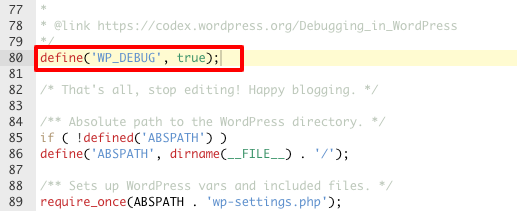
- Open the wp-config.php file and replace the line "define('WP_DEBUG', false);" with "define('WP_DEBUG', true);"
2.1 To get a more detailed report, also add the lines below:
define( 'WP_DEBUG_LOG', true );
define( 'WP_DEBUG_DISPLAY', true );
define( 'SCRIPT_DEBUG', true );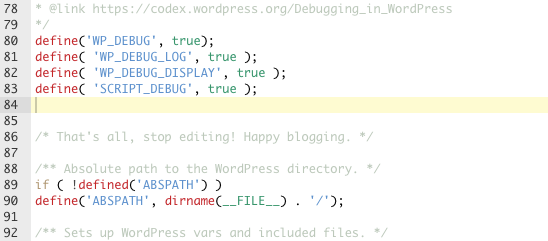
- Save the file.
Once you enabled the bugs report, you need to visit your WordPress site and access the pages that were resulting in errors or warning and check if new notifications appear on your site pages.
After that, go to /wp-content/ folder, and inside it your will find a file called debug.log.
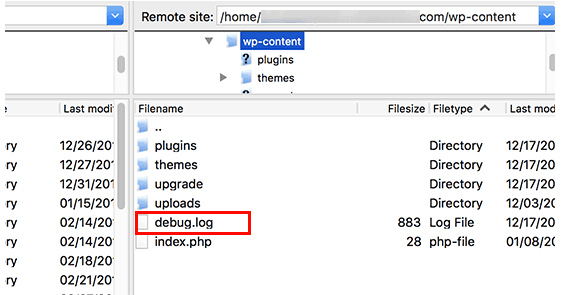
You can download, view, or edit this file. It will contain all WordPress errors, warnings, and notices that were logged.
Comments
0 comments
Please sign in to leave a comment.